Updated: January 2023 (Entrada v.1.23.1)
- This guide will introduce clinical faculty to key features in the CBME module of Entrada.
- For further training or support with program-specific concerns, please contact systems support with the PGME office at entradacbme.support@ubc.ca
- If you encounter any access or technical issues, please contact Digital Solutions Entrada support.
1. Accessing Entrada
For those with a Clinical Faculty appointment:
Most clinical faculty are automatically provided with Entrada access. If you do not have access, please make sure you have a CWL account. Once obtained, provide your CWL username and email address to your program assistant, who will submit an Entrada access request on your behalf.
For those who do not have a Clinical Faculty appointment:
Please contact your program assistant, who can provide you with an “external assessor” account in Entrada. Alternatively, when a resident triggers an EPA they can add your name and email address to immediately provide you with an “external assessor” account. With “external assessor” access you can receive EPAs via email, but will not have login access to the system.
Faculty Entrada accounts are automatically provisioned with both Undergrad and Postgrad permissions (indicated by the profile icon).
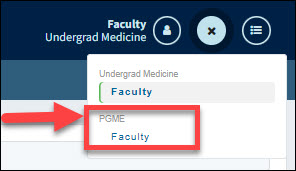
Upon first login, your access may default to your UGME profile, so always ensure that you are logged into your PGME profile. If necessary, open the “Organization Switcher” icon to switch to PGME.
2. Making changes to your preferred email address
The email address used by Entrada is pulled from Workday, your records maintained by Human Resources. To update your preferred email address in Entrada, please make edits to your “Work (Primary)” email in Workday. Once updated, this information should automatically sync to Entrada. Department HR administrators should also be able to assist with the update process. Program administrators will also have resources and current information about the Workday email update process.
3. Setting a PIN for in-the-moment EPA completion
You will need to set your PIN in order to authenticate EPAs in the moment on a resident’s mobile device.
-
-
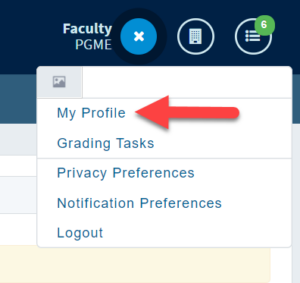
- Access your user profile by clicking on your profile icon at the top right of your Entrada page, then selecting My Profile from the drop down menu.
-
-
-
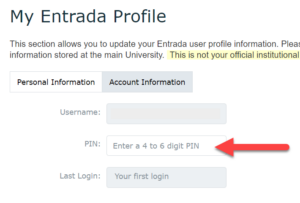
- Click on “Account Information” tab to set or reset your PIN.
- Enter a 4-6 digit number, and click “Save Profile” when you are done.
-
4. Initiating Assessments
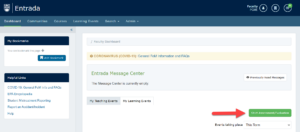
- From your dashboard, you are able to initiate an assessment by clicking on the green “Start Assessment/Evaluation” button.
- Select a resident by typing a name in the search field. Hovering over a resident name will show their photo (if uploaded) and program. If the learner is enrolled in two programs specify a program using the dropdown menu.
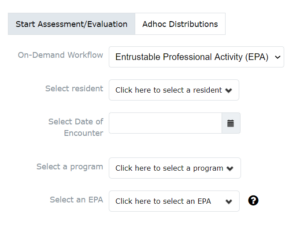
- After selecting the resident, set the date of encounter and choose the appropriate program. Note that program options are tied to the resident’s enrollment
- Select an EPA. You will only see the EPAs associated with the resident’s program(s).
- After selecting an EPA, all the available assessment forms will be displayed. You can also look for a specific form by typing part of the title into the search field.
- Click “Preview Assessment” to see the contents of the assessment tool, or “Begin Assessment” to proceed to the form. (The time displayed at the top right is an estimate of how long the form will take to complete, based on the experience of other users.)
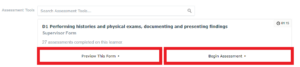
- Last, fill in the form and click “Save as Draft” to save and complete later, or “Submit” to complete the assessment. Once submitted, the form will immediately display on the resident’s CBME dashboard.
5. Viewing outstanding assessments
- If you have a clinical faculty account and log in access to Entrada (i.e. those without “external assessor” access), you can manage your outstanding assessments directly in the system. After logging in with your CWL, click the Assessment & Evaluation icon at the top right.
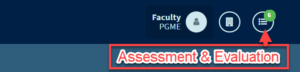
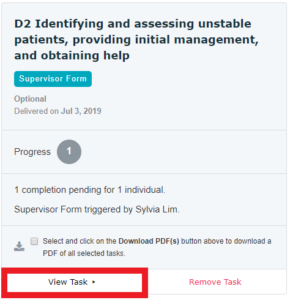
- View outstanding assessments under the “Assessment Tasks” tab. You can use this tool to view and complete outstanding assessments if they were sent by email (i.e. emailed assessments can be accessed and completed through the link in the system notification, or in the “Assessment Task” tab of your Entrada account).
- Click “View Task” to complete the assessment form.
6. Mobile Access
Mobile View
The Entrada webpage has responsive design, making it easier to complete assessment tasks on a mobile device. UBC does not currently support an Entrada app.
Multi-factor authentication (MFA)
To keep personal information at UBC secure, faculty, staff, and residents must update their Campus-Wide Login (CWL) account to an Enhanced CWL account. This update features an additional layer of protection with multi-factor authentication (MFA) provided by Duo Security.
Login to MFA Device Management Website
Using your CWL username and password, login to the Self-service MFA Enrollment and Device Management website at https://mfadevices.id.ubc.ca.
Enroll your device
Follow the detailed step-by-step instructions to enroll your first device. Once you are enrolled you can manage any of the authentication methods associated with your account, including adding or removing a device.
For further assistance, please contact the UBC IT Service Centre.
Additional Form Notes:
- The Narrative Form is called a Field Note Form in Entrada.
- Multisource feedback forms: Form 3 (MSF) forms are not yet available in Entrada due to limitations with assessor confidentially. Some programs have created a Form 1 (Supervisor) form in place of the MSF and some have been using paper forms or surveys such as Qualtrics. Please inquire with your program for more details.